Armenia residence for IEs: a step-by-step visual guide
Apply online for Armenian residence as a registered individual entrepreneur: illustrated steps for passport details, Armenian names, PSN, photos, bank statements, payment and tracking.
8 min read

Already registered as an individual entrepreneur (IE) in Armenia and ready to apply for residence? Your route in the residence portal is Foreign individual entrepreneur. This guide follows that route through documents, payment and application tracking, with screenshots of the form.
The form is called Registration of a Foreign Sole Proprietor, but it does not register your business. Your IE must already exist in the State Register. If you have not registered it, start with the IE registration guide.
What to prepare
An IE registration alone does not establish residence eligibility. The Law on Foreigners provides two alternative financial conditions for an IE: at least AMD 1,000,000 across the IE's accounts, or business turnover of at least AMD 1,000,000 during the 60 days preceding the application. The individual entrepreneur applies personally through the platform. Current law
| Item | Prepare before starting |
|---|---|
| Passport | A clear colour copy of the valid passport's personal-data page, PDF or JPG, up to 5 MB |
| Armenian name | Exact Armenian spelling of your first and last names from the passport translation |
| Public Services Number | Your PSN, if you have one; this is different from the IE's TIN |
| Contact details | An accessible email address and telephone; the illustrated form displays the Armenian telephone prefix |
| Portrait | JPG or PNG, up to 5 MB, meeting the form's photo guidance |
| IE bank statement | A legible PDF or JPG, up to 5 MB |
| Business records | TIN, registration number and date, and registered address, to compare with the retrieved information |
| Payment | A payment method accepted by the state payment gateway and a way to save the receipt |
Check your lawful-stay deadline before starting. Creating an account or saving a draft is different from submitting an application for examination. Lawful stay and travel while a residence case is pending
Choose the correct registration route
Open mcs-permits.am and select English to match these screenshots. Choose:
- Register.
- Complete the questionnaire.
- Foreign individual entrepreneur.
- Next, which opens Registration of a Foreign Sole Proprietor.
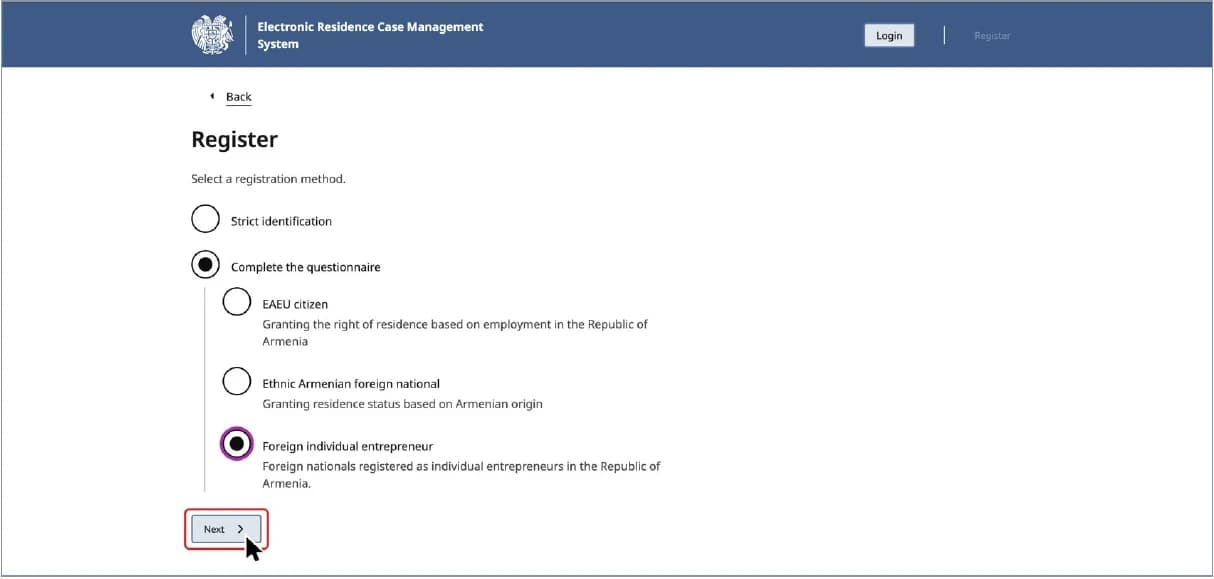
The form warns that registration through this procedure is equivalent to applying for residence. Complete it with your own information and documents. If you already started this route and have an account, use Login to return to your case.
Step one: upload and read the passport
Select Attach file and add a colour copy of your valid passport's personal-data page. This field accepts PDF or JPG up to 5 MB. Keep the whole page, all corners, text, photograph and document number clear. Official passport-copy guidance
Once the file is attached, select Read passport. The system extracts the details from the image. Wait while Loading data... is displayed; attaching a file alone does not finish the step.
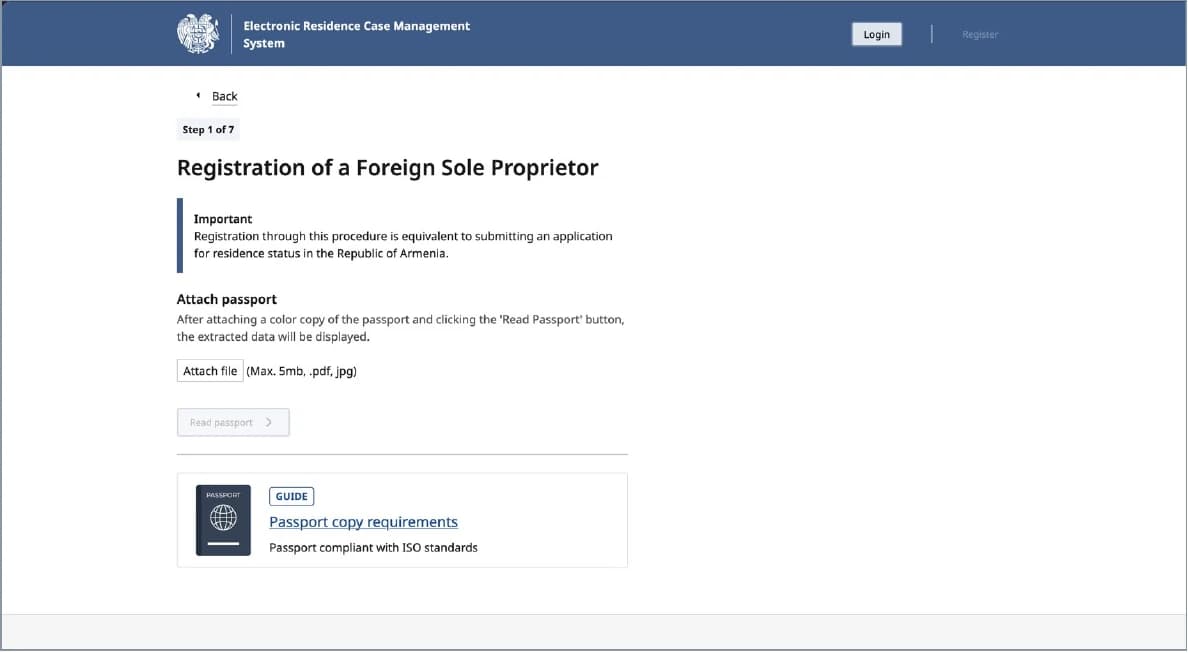
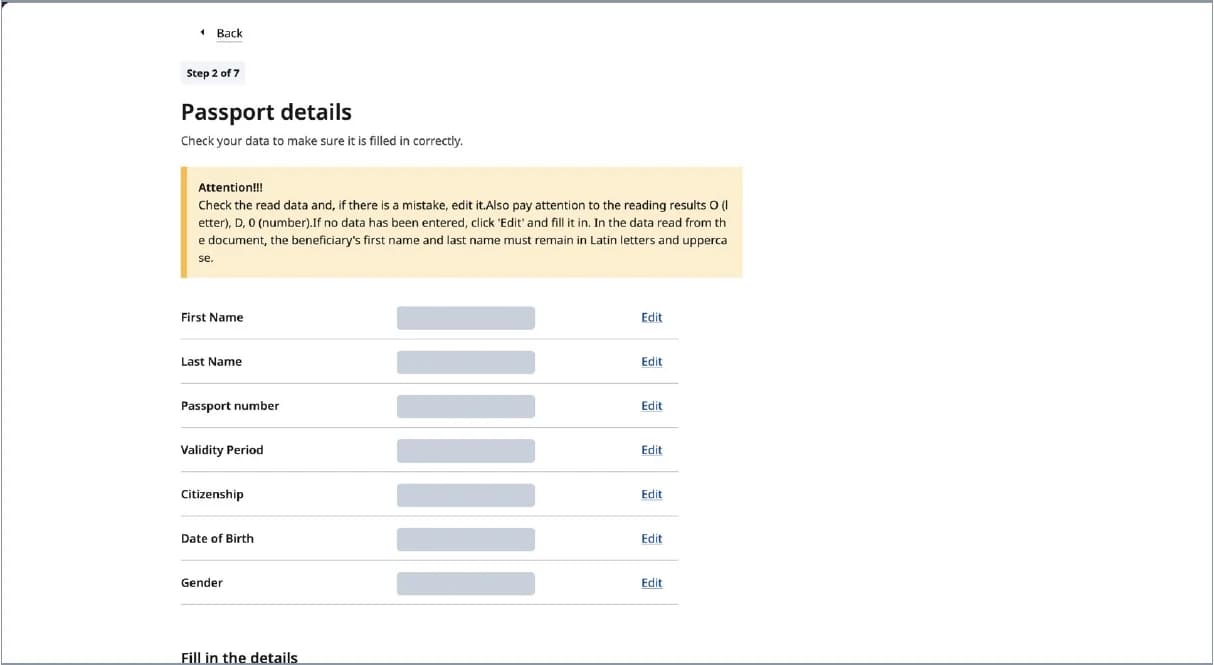
Step two: check passport details, Armenian names and PSN
Under Passport details, compare every extracted field with the passport: first and last names, passport number, validity, citizenship, date of birth and gender. Use Edit beside a field to correct recognition errors. Watch for similar-looking letters and digits. Passport first and last names must remain in uppercase Latin letters as shown in the document.
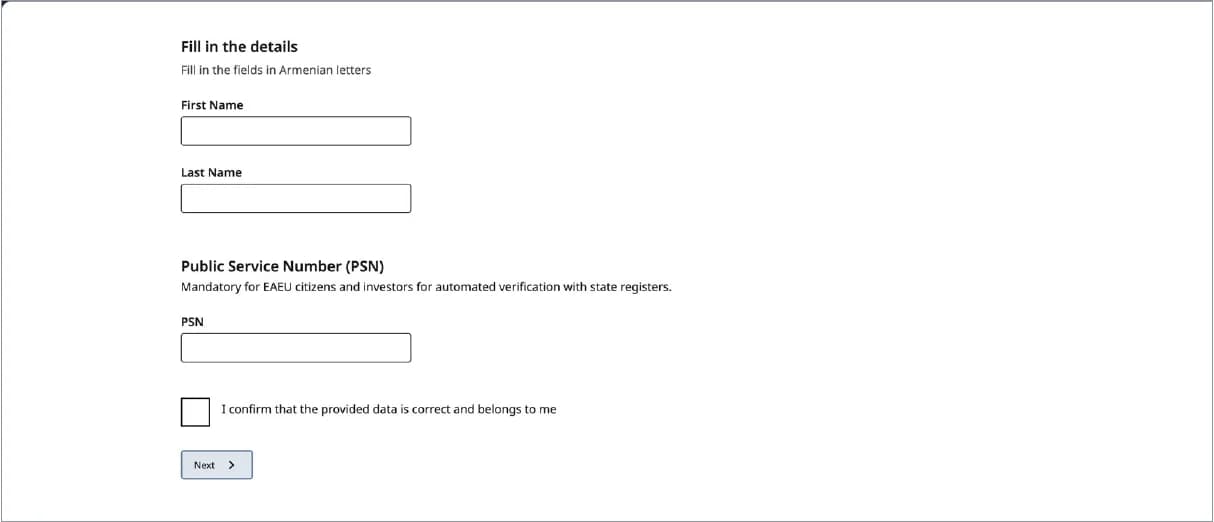
In Fill in the details, enter your first and last names in Armenian letters, matching the Armenian passport translation exactly. If copying from a document or using text recognition, check the pasted spelling character by character inside the field.
Enter your own Public Service Number (PSN) if you have one. Do not substitute the business TIN. After checking the details, select I confirm that the provided data is correct and belongs to me, then Next.
If the portal cannot find your IE or the correct passport data does not match the existing record, follow the PSN and passport correction guide. Do not alter correct passport details to fit an incorrect record.
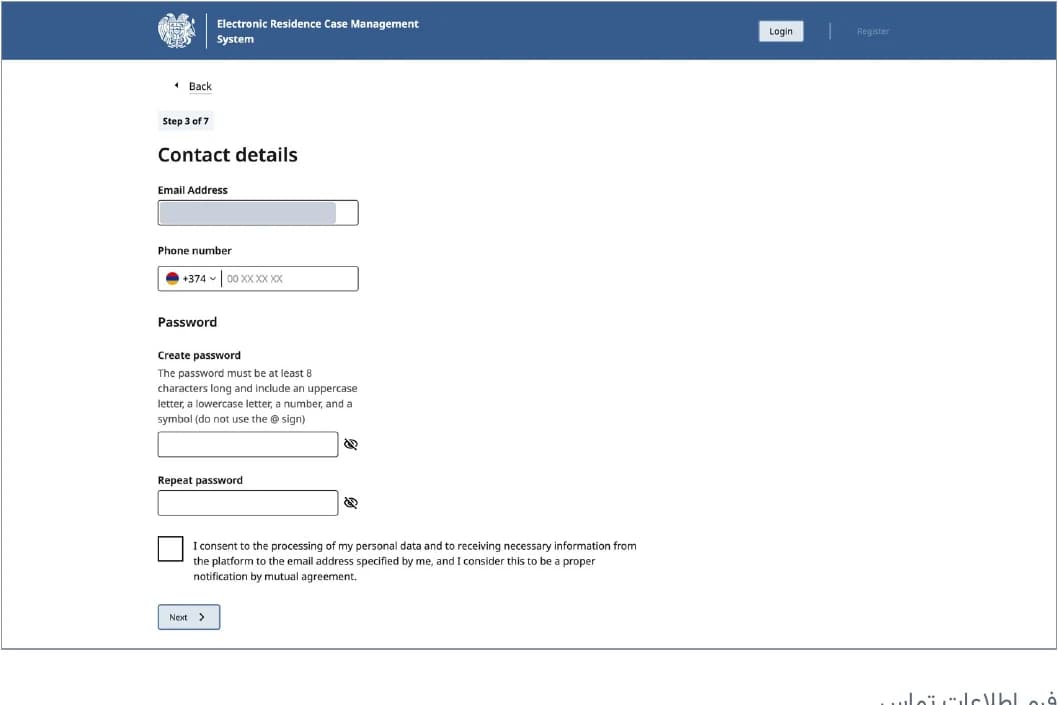
Step three: contact details and password
In Contact details, enter your email and telephone. Check the email carefully: verification and case notifications go there. The illustrated form uses the Armenian telephone prefix.
Enter a password in Password and repeat it in Repeat password. Follow the requirements below the field, including its minimum length, uppercase and lowercase letters, a number and a symbol. The screen specifically excludes the @ symbol.
Read the consent text concerning personal-data processing and notifications to the registered email address as valid notification. Complete the consent field and select Next.
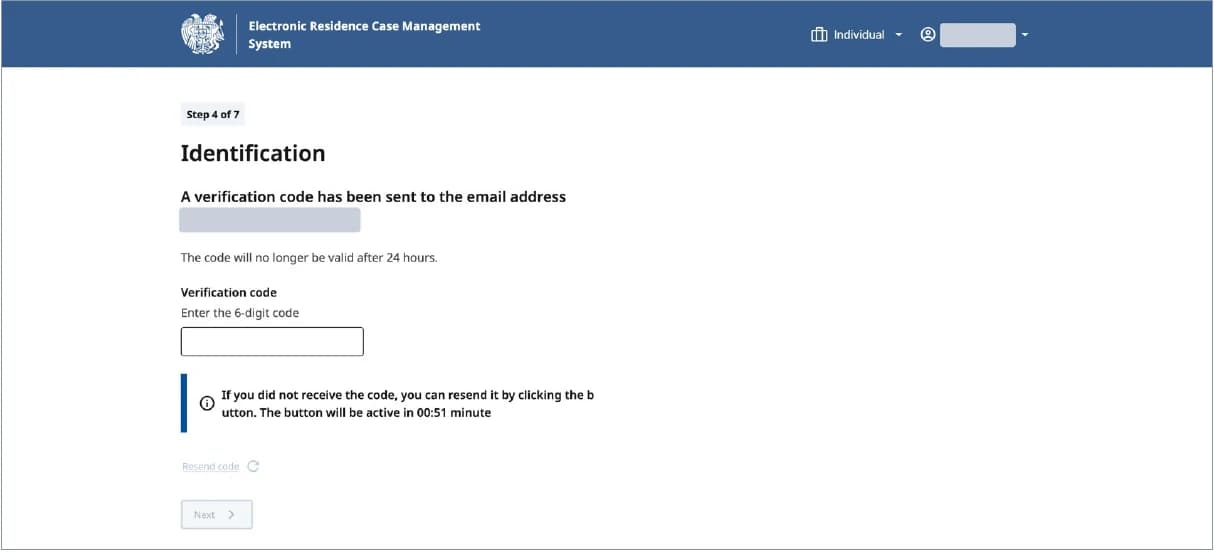
Step four: verify your email
On Identification, enter the code sent to your email in Verification code and select Next. If it does not arrive, check spam and the email address. Resend code becomes available after the on-screen countdown; the page also states the code's validity period.
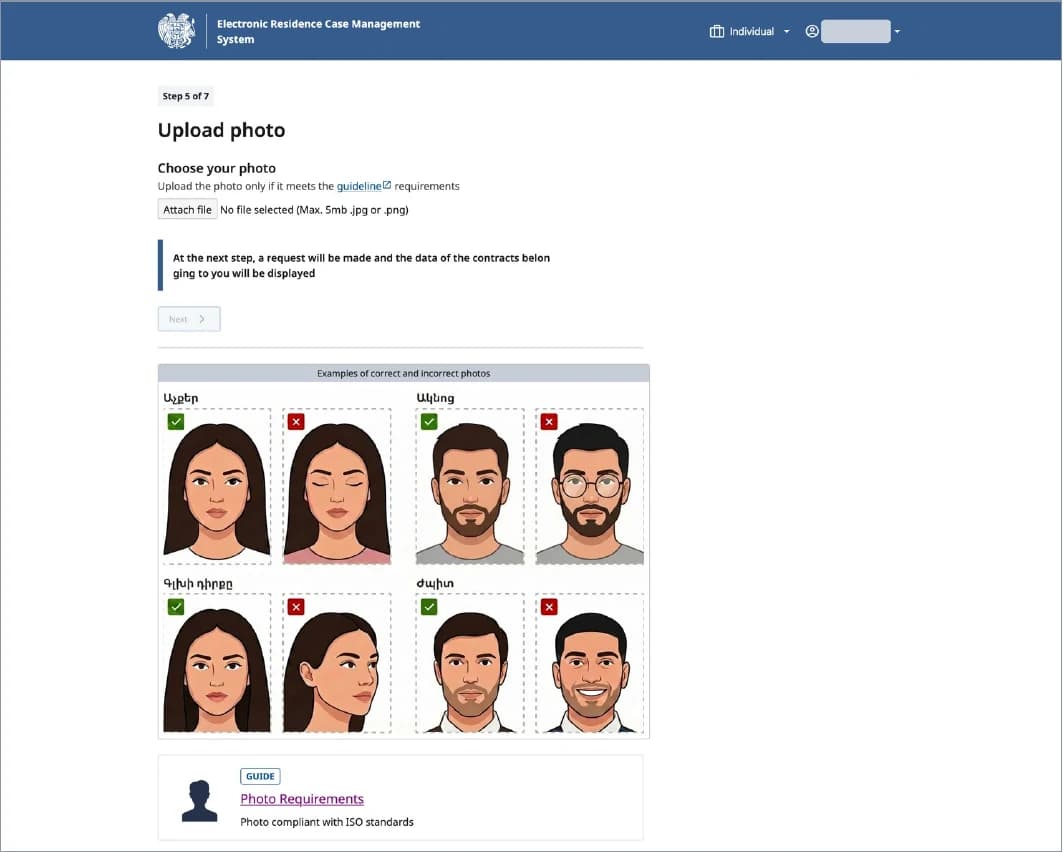
Step five: upload your portrait
On Upload photo, use Attach file for a JPG or PNG up to 5 MB. Read Photo Requirements and check the examples: face forward, head straight, eyes open, no glasses and a neutral expression.
A photograph of a passport is not a portrait upload. Match the technical specifications to the official photo guidance and the actual upload field rather than relying only on a general document list.
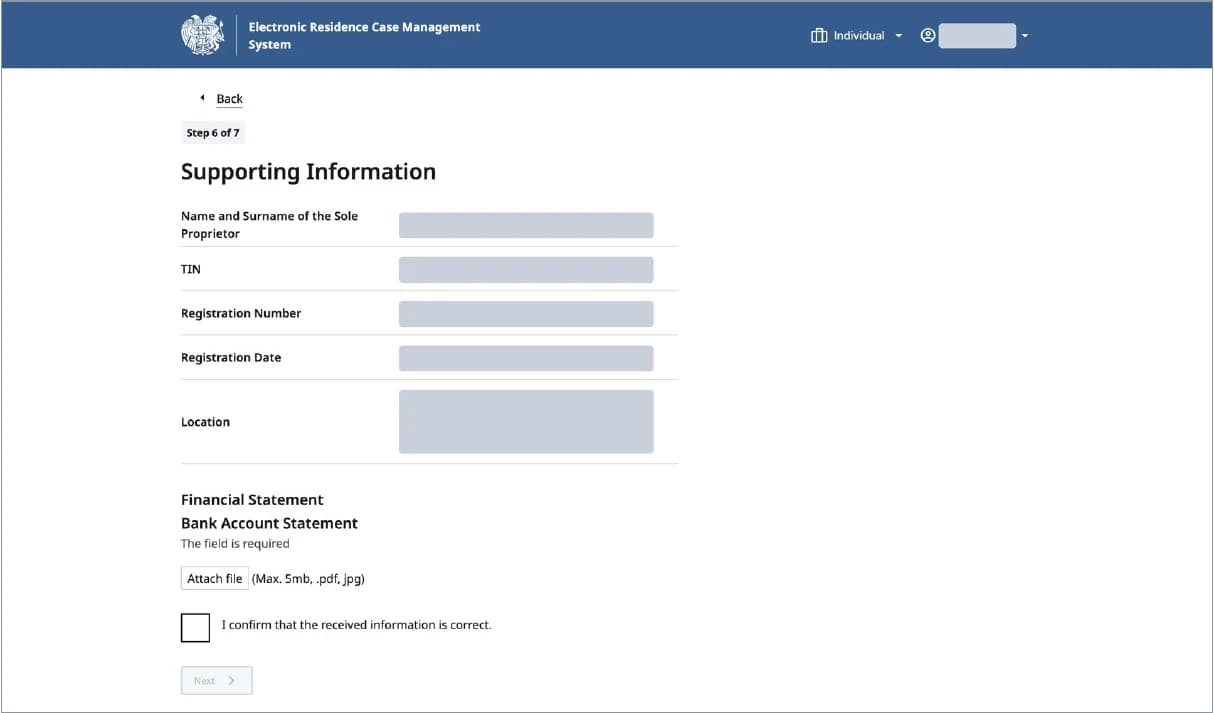
Step six: check IE information and attach the bank statement
Supporting Information displays business information retrieved from the State Register: the sole proprietor's name, TIN, registration number, registration date and Location. Compare it with your registration records and check that it belongs to your IE.
Under Financial Statement, Bank Account Statement is required. Upload a PDF or JPG up to 5 MB. XLSX is not among the formats listed for this field.
Open the file before uploading. The account holder, account details, relevant balance or transactions and dates must be legible. Keep scanned pages complete and in order; reducing file size should not make the text unreadable. The statement should allow the balance or business-turnover condition used for your application to be assessed.
After checking the retrieved details and attachment, select I confirm that the received information is correct, then Next.
Finish the questionnaire and proceed to payment
Before proceeding to payment, review your identity details, Armenian spelling, contact details, portrait and financial attachment. If the form presents a review screen, check its contents too, then complete the remaining form instructions until Make Payment appears. Follow the instructions displayed for each field.
Pay now or save an unpaid draft
The illustrated Make Payment page offers Temporary residence status, a one-year validity and a review duty of AMD 150,000. The law provides temporary status for up to one year; selecting the option or paying does not mean residence has been approved. The separate statutory card-issuance fee is AMD 5,950. State Duty Law
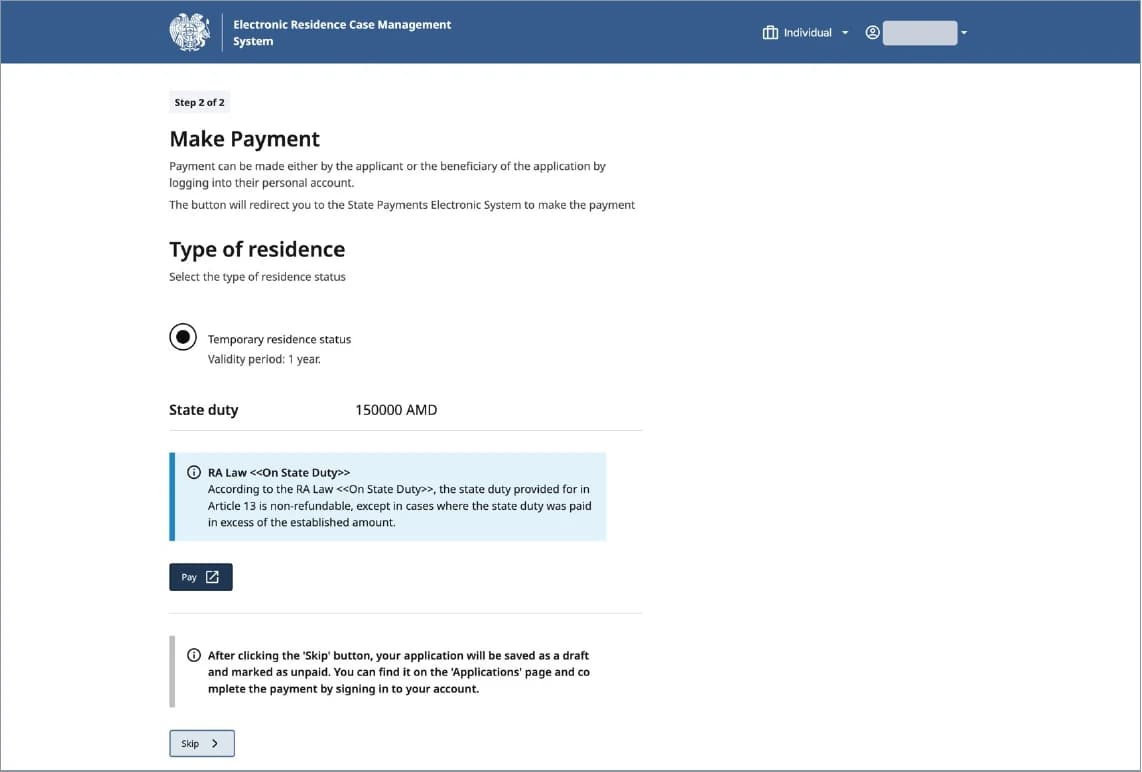
- Pay opens the state electronic payment system. Check the final total, any gateway commission and the remaining session time there, then save the receipt.
- Skip postpones payment. The page explains that the application is saved as an unpaid draft. Reopen it from Applications to pay later.
An unpaid draft is not proof that a case has been submitted for examination. If your account has been debited but the status has not changed, check the receipt and transaction result before attempting another payment.
Check whether the case was submitted
Open Applications in your account. The application row shows its ID, basis, date and status. These labels mean different things:
| Status | What it tells you |
|---|---|
| PAYMENT PENDING | Payment is awaiting completion or confirmation; a case saved with Skip remains unpaid |
| PAID | Payment has been confirmed; this is not a residence decision |
| SUBMITTED | The application has been sent for examination; a decision is still pending |
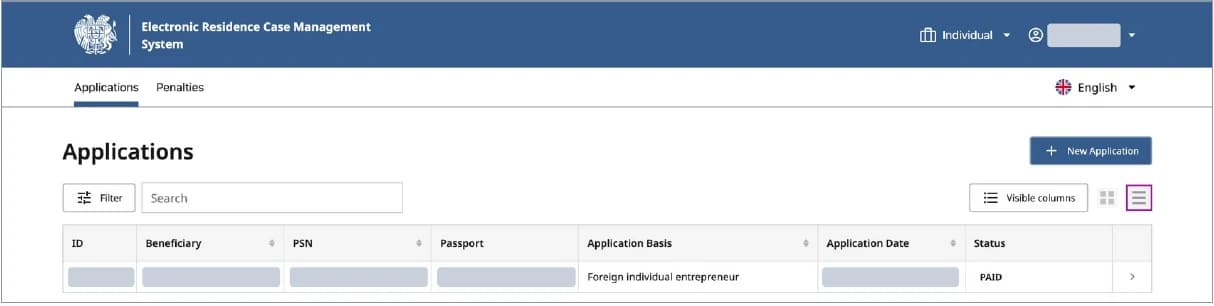
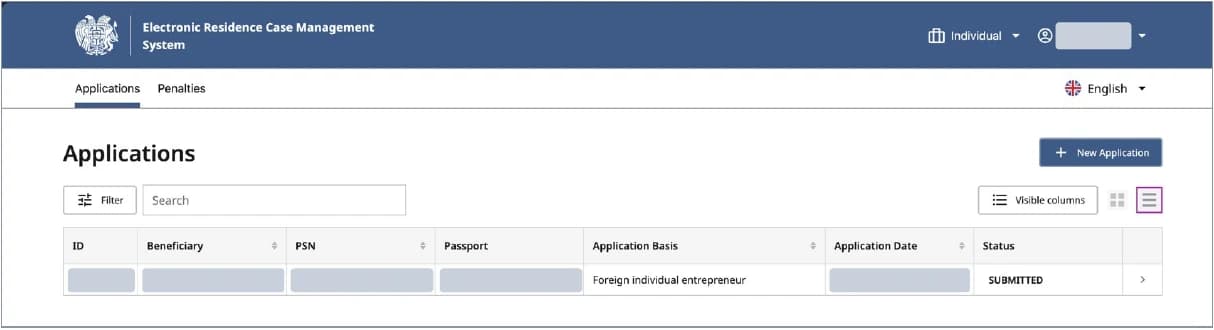
Status changes may not be immediate. Keep the payment receipt and application ID, then check again. Open the application row to follow its details and history. Application Data, Application History and Payment History cover the submitted information, changes and payments. Continue monitoring the registered email address.
After submission
The ordinary statutory decision period is 30 days from submission. A platform notice requesting corrections or documents gives 5 days to take the required action before automatic suspension. See the missing-documents and suspension guide. Law on Foreigners
The law protects lawful stay that expires during proceedings, but an account, an unpaid draft and permission to re-enter Armenia are separate matters. Read the pending-case stay and travel guide before planning a trip.
Card collection is a separate step after approval. Follow your case instructions and the HayPass booking and residence-card collection guide. MCS has announced personal collection with fingerprints and an electronic signature specimen. Official announcement
Common questions
Does this form register an IE?
No. The business must already be registered. The residence system retrieves that business's existing State Register information.
Does paying mean residence is approved?
No. PAID confirms payment; SUBMITTED confirms that the application was sent for examination. Approval requires a residence decision.
Can I upload an Excel bank statement?
The illustrated Bank Account Statement field lists PDF and JPG only. Prepare the file in a listed format and within the upload limit.
What if the portal cannot find my IE?
Compare your names, passport details and PSN with your documents and official records. Follow the correction guide. If the problem persists, use MCS's official contacts and keep the error text and case reference.
Acknowledgement
Thank you to Faezeh for preparing the step-by-step guide and screenshots of the application process. Her guide supplied the practical details and illustrations used to expand this article.
This information is for general guidance. Your case may differ depending on your circumstances, so check it with an immigration lawyer or the Migration and Citizenship Service before you make a decision.
See your own numbers
Type your income and activity to compare every regime you appear eligible for, with your deadlines.